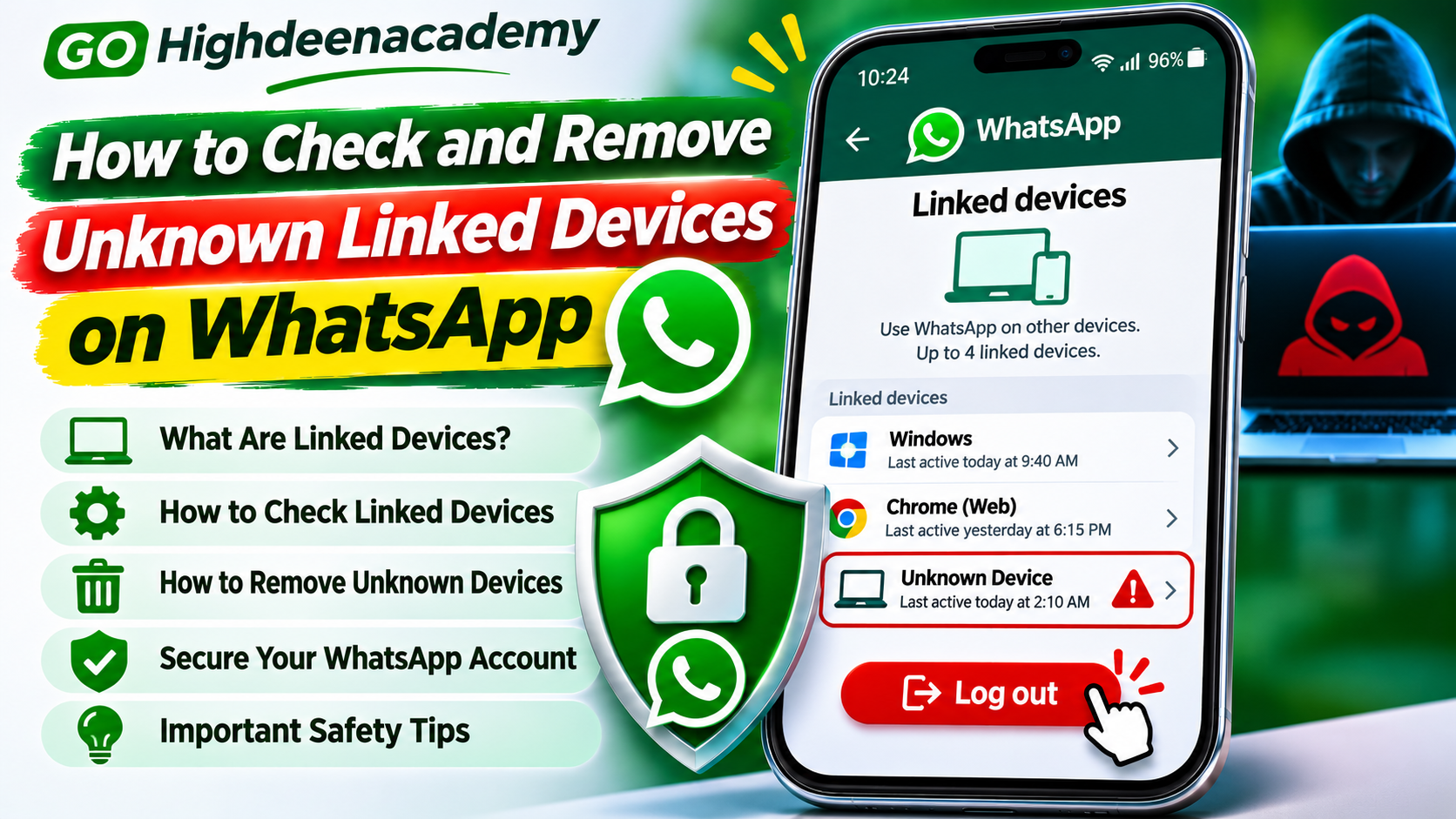
How to Check and Remove Unknown Linked Devices on WhatsApp
WhatsApp has become an essential communication tool for personal conversations, business discussions, and sharing important information. With its linked-device feature, users can access their accounts from computers, tablets, and additional smartphones without constantly switching between devices.
Although this feature offers convenience, it also creates security concerns when unfamiliar devices gain access to an account.
Imagine discovering a computer connected to your WhatsApp account that you do not recognize. You may wonder whether someone has been reading your conversations or accessing information without permission.
Fortunately, WhatsApp provides built-in options to review connected devices and remove unwanted sessions.
Understanding how to use these features is an important part of protecting your privacy and digital security.
In this guide, we explain how WhatsApp linked devices work, how to identify unfamiliar connections, how to remove them on Android and iPhone, and what precautions can help prevent unauthorized access.
What Are Linked Devices on WhatsApp?
WhatsApp's linked-device feature allows users to access the same account across multiple supported devices.
For example, you can use WhatsApp on your smartphone while simultaneously accessing conversations through WhatsApp Web on a computer.
The feature supports several device types, including:
Windows computers
Mac computers
WhatsApp Web browsers
Android tablets
iPads
Companion smartphones
Certain supported wearable devices
For standard personal accounts, WhatsApp generally allows up to four additional linked devices alongside the primary phone.
Each linked device connects independently, allowing supported features to work even when your primary phone is temporarily offline.
WhatsApp uses end-to-end encryption to protect personal messages and calls on supported linked devices.
However, encryption does not prevent someone with unauthorized access to a linked device from viewing information available through that device.
This makes reviewing connected sessions an important security practice.
Why Should You Check WhatsApp Linked Devices?
Many people connect WhatsApp to a computer for work or personal convenience and eventually forget about the active session.
This can become a security concern when using shared computers or devices accessible to other people.
For example, if you connect WhatsApp Web on a public computer and leave the session active, someone using the same computer may potentially access your account.
Cybercriminals may also attempt to deceive users into linking unauthorized devices through fraudulent QR codes or device-linking requests.
Regularly reviewing linked devices helps you identify connections that no longer belong to you or should not remain active.
It also provides an opportunity to remove old sessions and maintain better control over your account.
How to Check Linked Devices on WhatsApp Android
Android users can review connected devices directly through WhatsApp.
Follow these steps:
Open WhatsApp on your Android smartphone.
Tap the three-dot menu in the upper-right corner.
Select Linked devices.
Review the list of devices connected to your account.
Select any device to view the available session information.
The list may contain device names, platform details, and recent activity information.
For example, you might see a Windows computer, a web browser, or another smartphone associated with your account.
Compare these entries with the devices you personally use.
If you notice an unfamiliar device, investigate it immediately.
Keep in mind that a browser or operating system description may not clearly identify its owner.
An unfamiliar name is a reason to investigate, but it does not always confirm unauthorized access.
How to Check Linked Devices on WhatsApp iPhone
iPhone users can also review connected devices through the application's settings.
Follow these instructions:
Open WhatsApp on your iPhone.
Tap Settings or your profile icon, depending on the application version.
Select Linked Devices.
Review the available connected sessions.
Tap a device to inspect its information.
If you previously connected WhatsApp to a laptop, desktop computer, or tablet, that device may appear in the list.
Consider when and where you last used each device.
For instance, a computer you connected at work several months ago might still appear if the session remains active.
If you no longer need that connection, removing it is a sensible precaution.
WhatsApp's interface can change between updates, so the precise menu appearance may vary.
How to Identify an Unknown Linked Device
Not every unfamiliar entry indicates that your account has been hacked.
Sometimes people forget that they previously connected WhatsApp to a computer or tablet.
However, certain warning signs deserve attention.
An Unrecognized Device Name
If the linked-device list shows a platform you have never used, investigate the connection.
For example, a Mac session may be suspicious if you have never accessed WhatsApp using an Apple computer.
Unexpected Recent Activity
A linked device showing recent activity at a time when you were not using it may raise concerns.
However, activity indicators should not be treated as a complete record of who accessed your account or what they viewed.
A Device You Previously Shared
If you used WhatsApp on a computer belonging to someone else, consider whether you logged out afterward.
Shared devices can create privacy risks when sessions are left accessible.
Unexpected Linking Notifications
WhatsApp may display a notification when a new device is connected or when a linking request appears suspicious.
If you did not initiate the connection, investigate the notification before approving anything.
How to Remove Unknown Linked Devices on WhatsApp
Removing an unfamiliar linked device is generally straightforward.
On Android
Open WhatsApp.
Tap the three-dot menu.
Select Linked devices.
Choose the device you want to disconnect.
Tap Log out.
Return to the list and confirm that the session has been removed.
On iPhone
Open WhatsApp.
Navigate to Settings.
Tap Linked Devices.
Select the unfamiliar device.
Choose Log Out.
Verify that the connection no longer appears.
Logging out disconnects the selected device from your active WhatsApp account session.
The device would need to complete an authorized linking process again before reconnecting.
However, removing a session does not guarantee that previously viewed, copied, downloaded, or captured information has been erased from that device.
This is why acting quickly is important.
Can You Log Out of WhatsApp on All Devices?
WhatsApp allows users to manage linked devices through the primary phone.
If several devices are unfamiliar or no longer needed, you can remove them individually.
Open the Linked Devices section and select each unwanted session.
Logging out of every unnecessary device can reduce the number of active connections to your account.
Do not confuse logging out of your primary phone with removing linked devices.
These are different actions, and signing out of the primary phone may not immediately disconnect existing linked sessions.
For account security, use the specific linked-device management controls.
How Do Scammers Link Unknown Devices?
Cybercriminals sometimes attempt to trick WhatsApp users into granting access to another device.
These attacks often rely on social engineering rather than technical hacking.
For example, a fraudulent website might claim that you need to connect WhatsApp to participate in a competition or receive a reward.
The website may ask you to scan a QR code or enter a device-linking code.
However, completing these actions could connect your WhatsApp account to a device controlled by a scammer.
In March 2026, Meta announced additional WhatsApp device-linking warnings designed to identify suspicious linking attempts.
These warnings may help users reconsider requests that display indicators of fraudulent activity.
Nevertheless, security warnings cannot identify every scam.
Always verify why a website or individual wants access to your WhatsApp account.
What to Do If You Find an Unknown Device
Discovering an unfamiliar linked session can be concerning.
However, taking a few practical steps can help protect your account.
1. Disconnect the Device Immediately
Open Linked Devices and log out of the suspicious session.
If other unfamiliar devices appear, remove those connections too.
2. Enable Two-Step Verification
Two-step verification adds another authentication requirement to your account.
Open WhatsApp Settings, select Account, and locate the available two-step verification options.
Follow the instructions to configure additional account protection.
Use strong, unique credentials and keep them confidential.
3. Protect Your Phone
Enable a secure screen lock and avoid sharing your unlocked device.
Someone with access to an unlocked phone may be able to approve device-linking requests.
4. Secure Your Recovery Email
If your WhatsApp account uses a recovery email address, protect that email account with a strong password and multifactor authentication.
Also review the email account for suspicious access.
5. Inform Trusted Contacts
If you believe someone has used your WhatsApp account to send fraudulent messages, warn your contacts through another trusted communication method.
This may help prevent impersonation scams.
Can an Unknown Linked Device Read Your Messages?
An unauthorized linked device can present a serious privacy risk.
WhatsApp's linked-device system allows supported devices to receive and display account conversations.
When a device is linked, WhatsApp may synchronize recent message history with that device.
If someone gains unauthorized access through a linked session, they may be able to view messages and other information available to it.
The amount of information accessible can depend on the device type, synchronization status, and account configuration.
End-to-end encryption protects messages during transmission, but it does not prevent an unauthorized person from reading messages on a device that already has legitimate account-level access.
Therefore, unfamiliar sessions should be disconnected promptly.
How to Prevent Unknown Devices From Connecting
Preventing unauthorized access is generally easier than recovering from a security incident.
Several precautions can help protect your WhatsApp account.
Avoid Scanning Suspicious QR Codes
Only scan device-linking QR codes when you intentionally want to connect WhatsApp to a trusted device.
Do not scan codes received through unexpected messages or unfamiliar websites.
Never Share Device-Linking Codes
WhatsApp supports certain methods for linking devices using a phone number and a linking code.
Never share these codes with strangers or enter them because someone promises a prize, job, or account benefit.
Keep WhatsApp Updated
Install updates through official application stores.
Updates may include security improvements, compatibility fixes, and new account protection features.
Enable Security Notifications
Keep relevant WhatsApp notifications enabled so you can notice unexpected linking requests and account warnings.
Investigate notifications that you do not recognize.
Review Linked Devices Regularly
Make a habit of checking linked devices periodically, particularly after using shared or public computers.
Remove connections that are no longer needed.
Does WhatsApp Automatically Remove Inactive Linked Devices?
WhatsApp includes automatic disconnection rules for linked devices.
According to its Help Center, inactive linked devices are generally disconnected after 30 days.
Linked devices may also be logged out when the primary phone remains unused for more than 14 days.
However, these automatic protections should not replace manual security checks.
If you notice an unfamiliar session, remove it immediately rather than relying on automatic disconnection.
What If You Completely Lose Access to WhatsApp?
An unfamiliar linked device is different from a complete account takeover.
If someone has registered your phone number on another phone and you can no longer access WhatsApp, simply checking linked devices may not be possible.
In that situation, follow WhatsApp's official compromised-account recovery procedure.
If you still control your registered phone number, you may be able to re-register using the verification code delivered through an approved method.
WhatsApp states that successfully re-registering your account with the six-digit verification code logs out other devices connected to the account.
Additional verification requirements or a waiting period may apply.
Never pay an unofficial service claiming that it can instantly bypass WhatsApp account security.
Frequently Asked Questions
How many devices can I link to WhatsApp?
Standard personal WhatsApp accounts generally support up to four additional linked devices. Certain WhatsApp Business arrangements may offer different limits.
Can someone connect WhatsApp to another phone without permission?
An attacker may attempt to trick users into approving a linking request, scanning a fraudulent QR code, or sharing a linking code. Protecting these actions is important.
Will someone know if I remove their linked device?
Removing a linked session disconnects it from your account. The person using that device may notice that WhatsApp requires a new login or linking process.
Can I find out exactly who linked an unknown device?
WhatsApp's linked-device information does not necessarily identify the individual who used a device. Device details and activity indicators alone may not establish someone's identity.
Does logging out delete messages from the unknown device?
Logging out removes the active account session, but it does not guarantee the deletion of information that was previously copied, exported, or captured.
Is checking linked devices enough to keep WhatsApp secure?
No. Linked-device checks should be combined with two-step verification, device security, careful handling of verification codes, and phishing awareness.
Final Thoughts
WhatsApp's linked-device feature makes communication more convenient, especially for people who regularly use computers, tablets, and additional smartphones.
However, unauthorized linked sessions can expose private conversations and other sensitive information.
Fortunately, checking connected devices and removing unfamiliar sessions requires only a few simple steps.
Regularly review the Linked Devices section, disconnect unnecessary connections, and investigate unexpected security notifications.
You should also enable two-step verification, secure your smartphone, and avoid approving unfamiliar device-linking requests.
Remember: Keeping control of your connected devices is an important part of keeping your WhatsApp conversations private and secure.
At GO Highdeenacademy, we encourage readers to stay informed about digital security and follow practical steps to protect their online accounts.