7 WhatsApp Privacy Settings You Should Check in 2026
WhatsApp is one of the most widely used messaging applications in the world, helping people stay connected through personal messages, voice calls, video calls, and group conversations. Whether you use WhatsApp to communicate with family, manage business discussions, or share important updates, protecting your privacy should be a priority.
Although WhatsApp provides end-to-end encryption for personal messages and calls, encryption alone does not control who can see your profile information, contact you, or add you to unfamiliar groups.
In 2026, WhatsApp offers several useful privacy controls that allow users to manage their personal information and reduce unwanted interactions. However, many people continue using default settings without reviewing the available options.
Understanding these features can help you make informed decisions about your digital privacy.
In this guide, we explain seven important WhatsApp privacy settings you should check in 2026, how to adjust them, and why they matter.
1. Control Who Can See Your Last Seen and Online Status
Your Last Seen and Online settings determine who can see when you were recently active on WhatsApp or whether you are currently using the application.
While this information may seem harmless, it can reveal patterns about your daily routine and online activity.
For example, someone who regularly monitors your online status may be able to estimate when you are awake, working, or using your smartphone.
WhatsApp allows you to restrict this information.
How to Change Last Seen and Online Settings
Open WhatsApp on your smartphone.
Navigate to Settings.
Select Privacy.
Tap Last seen and online.
Choose who can see your last seen information.
Select who can see when you are online.
Available last seen options generally include Everyone, My Contacts, My Contacts Except, and Nobody.
For better privacy, consider selecting My Contacts or Nobody, depending on your preferences.
You can also configure your online visibility to follow your Last Seen setting.
Why This Setting Matters
Limiting your online visibility gives you greater control over your activity information.
It may also reduce pressure from people who expect immediate responses whenever you appear online.
Remember that hiding your Last Seen information generally means you cannot see other users' Last Seen information either.
This setting does not prevent someone from sending you messages or seeing when you are typing in an active conversation.
2. Restrict Your Profile Photo and About Information
Your WhatsApp profile photo and About section can reveal personal information.
A profile picture may identify you, while your About section might contain details about your profession, interests, or personal circumstances.
If these details are publicly visible, unfamiliar people who have your phone number may be able to access them.
WhatsApp provides privacy controls that let you decide who can view this information.
How to Protect Your Profile Information
Open WhatsApp Settings.
Select Privacy.
Tap Profile photo.
Choose your preferred visibility setting.
Return to Privacy.
Select About and review its visibility options.
For a personal account, My Contacts is often a reasonable starting point.
If you want additional privacy, select My Contacts Except to hide information from specific saved contacts.
You can also choose Nobody to hide the information more broadly.
Why You Should Review These Options
Restricting profile information helps reduce unnecessary exposure to strangers.
It may also make it harder for scammers to collect details for impersonation attempts.
However, hiding your profile photo does not make your phone number invisible to people you communicate with.
For better protection, avoid including sensitive information such as your home address, financial details, or identification numbers in your public profile.
3. Customize Who Can View Your WhatsApp Status
WhatsApp Status allows users to share pictures, videos, and text updates that normally disappear after 24 hours.
Although status updates are temporary, they can still reveal personal activities, locations, relationships, or daily routines.
Some users share family pictures, travel experiences, workplace updates, or personal announcements without reviewing who can see them.
WhatsApp provides several audience controls for managing status visibility.
How to Change Status Privacy
Open WhatsApp.
Navigate to Settings.
Select Privacy.
Open Status or the available status audience controls.
Choose the audience that matches your preferences.
Common options include:
My Contacts: Share updates with your saved contacts.
My Contacts Except: Exclude selected contacts.
Only Share With: Choose specific contacts who can see your updates.
For sensitive personal updates, Only Share With can provide more control.
Important Privacy Considerations
Before sharing a status, consider whether it contains information you would prefer to keep private.
Avoid unnecessarily exposing travel plans, financial documents, home addresses, or other sensitive details.
Also remember that status mentions and certain group-sharing features can affect who receives your update. Someone who can view a status may also capture or reshare its contents.
Changing your status privacy settings generally does not change the audience of updates you have already published.
Reviewing status visibility before posting can help prevent accidental oversharing.
4. Manage Who Can Add You to WhatsApp Groups
WhatsApp groups are useful for family discussions, educational communities, workplaces, and social activities.
However, unexpected group invitations can expose users to spam, suspicious links, and unwanted messages.
Being added to unfamiliar groups may also reveal your phone number to other participants.
Fortunately, WhatsApp provides controls for managing group invitations.
How to Change Group Privacy Settings
Open WhatsApp Settings.
Select Privacy.
Tap Groups.
Review the available options.
Choose who can add you directly.
Available options generally include Everyone, My Contacts, and My Contacts Except.
Selecting My Contacts prevents numbers that are not saved in your contacts from directly adding you to groups through the normal invitation process.
You can further restrict group additions by excluding particular contacts.
Why Group Privacy Is Important
Unwanted groups sometimes contain advertisements, suspicious investment promotions, phishing attempts, or fraudulent offers.
Restricting group invitations can reduce unnecessary exposure to these situations.
Depending on the circumstances, people who cannot add you directly may still send a private invitation for you to accept.
Remember that WhatsApp group membership may expose your phone number to other members.
Only join groups that you consider relevant and trustworthy.
5. Turn Read Receipts On or Off
Read receipts are the familiar blue check marks that indicate when a message has been read.
This feature can be useful for communication because it helps people understand whether their messages have been opened.
However, some users prefer not to share their reading activity.
WhatsApp allows users to disable read receipts for supported personal conversations.
How to Disable Read Receipts
Open WhatsApp.
Navigate to Settings.
Select Privacy.
Find Read receipts.
Turn the option off if you prefer additional privacy.
After disabling read receipts, other users generally cannot see blue read indicators for your personal chats.
However, you will also lose the ability to see their read receipts.
Important Limitations
Turning off read receipts does not disable every message-related indicator.
Read receipts still operate in group chats, and voice-message play receipts may remain available.
The setting can also affect your ability to see who viewed your WhatsApp Status.
For people who prefer less pressure to respond immediately, disabling read receipts may improve their communication experience.
It is a personal preference rather than a requirement for account security.
6. Enable Silence Unknown Callers
Unexpected WhatsApp calls can be frustrating, especially when they come from unfamiliar numbers.
Some unwanted calls may be associated with spam, scam attempts, or other suspicious activity.
WhatsApp includes a feature called Silence Unknown Callers, which helps users manage these interruptions.
When enabled, calls from unknown numbers are silenced instead of making the phone ring.
How to Enable Silence Unknown Callers
Open WhatsApp Settings.
Select Privacy.
Tap Calls.
Find Silence Unknown Callers.
Enable the setting.
Once activated, eligible calls from unknown numbers will not ring normally.
However, these calls can still appear in your call history so you can review them later.
Benefits of This Feature
This setting can reduce interruptions from unwanted callers and limit opportunities for suspicious callers to pressure you into responding.
It is particularly useful if you frequently receive messages or calls from people outside your contact list.
However, the feature does not automatically block every unknown caller or eliminate all scam attempts.
If you use WhatsApp for customer communication, consider whether silencing unknown callers could cause you to miss important calls.
You can review your call history and independently verify unfamiliar numbers before returning calls.
7. Use Advanced Chat Privacy for Sensitive Conversations
Advanced Chat Privacy is another useful WhatsApp feature for users who want additional control over sensitive conversations.
Introduced in 2025 and relevant in 2026, this option offers extra protections within individual chats and groups.
It is designed to reduce certain ways that conversation content can be taken outside WhatsApp.
When enabled, Advanced Chat Privacy can prevent chat exporting, automatic media saving to participants' devices, and certain uses of messages with AI features.
How to Enable Advanced Chat Privacy
Open the WhatsApp conversation you want to protect.
Tap the contact or group name.
Find Advanced Chat Privacy.
Open the setting.
Enable it if the feature is available.
You can review this setting separately for conversations where additional privacy is important.
When Should You Use It?
Advanced Chat Privacy can be useful for conversations involving private family matters, confidential planning, or sensitive personal discussions.
It may also benefit groups where members want additional restrictions on sharing conversation content outside the application.
However, it does not guarantee that participants cannot copy information manually, photograph a screen, or disclose what they have read.
You should still avoid sending highly sensitive information to people you do not trust.
Understanding these limitations helps users make informed decisions about private communication.
Additional Tips to Improve WhatsApp Privacy in 2026
Adjusting these seven settings is an excellent starting point, but protecting personal information also requires responsible digital habits.
Keep WhatsApp updated through your device's official application store.
Use a strong screen lock to protect your smartphone against unauthorized physical access.
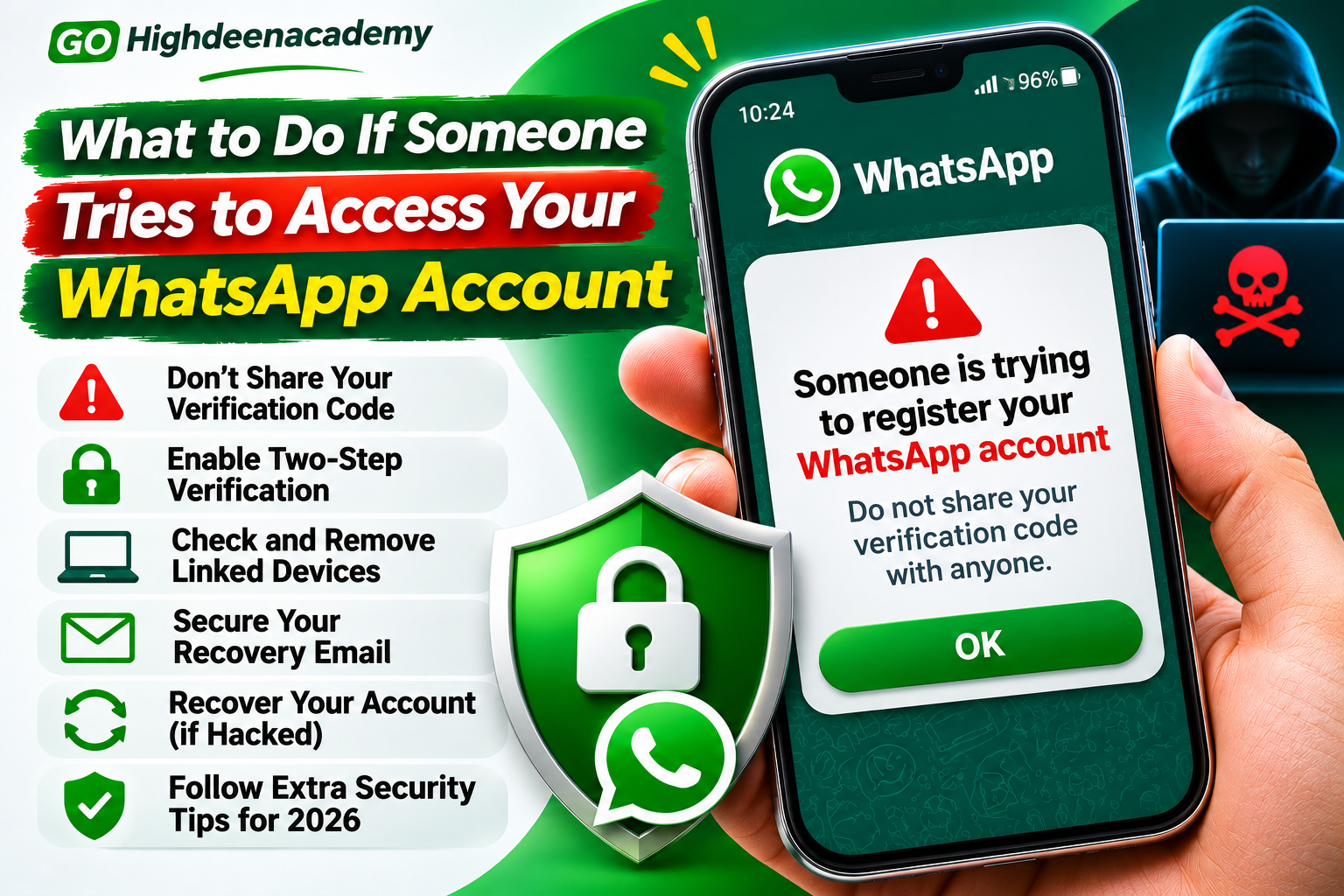
Review linked devices regularly and disconnect sessions you do not recognize.
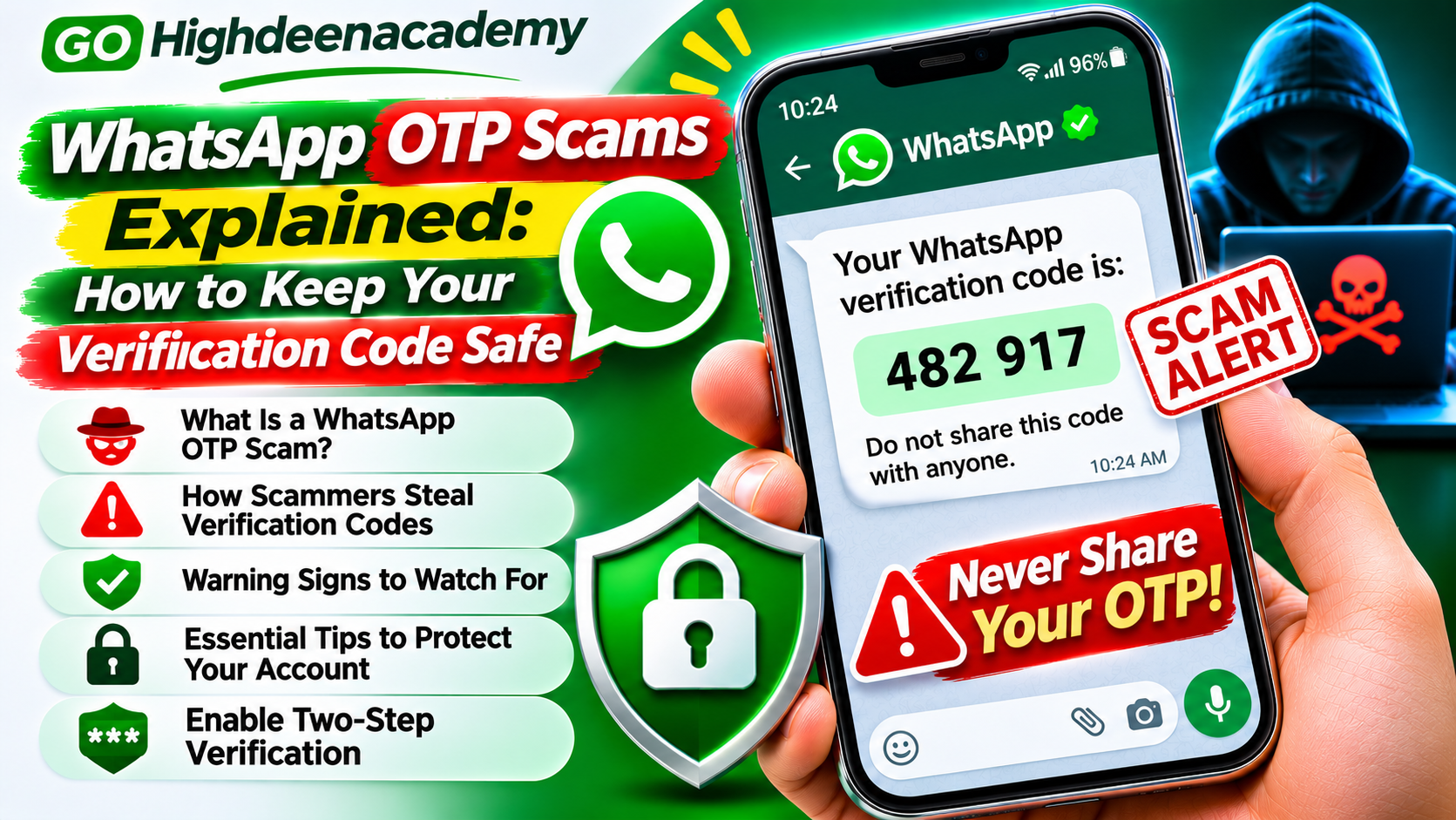
Avoid sharing verification codes or authentication details, even with people claiming to represent customer support.
Be cautious when opening suspicious links, downloading unfamiliar attachments, or responding to unexpected requests for personal information.
WhatsApp also provides a Privacy Checkup feature, which guides users through several privacy options.
You can find it within the application's Privacy settings when available.
In 2026, WhatsApp also introduced Strict Account Settings for users who need stronger protection against sophisticated cyber threats.
This optional feature applies more restrictive security controls but may limit certain functions.
For everyday users, choosing suitable privacy settings and maintaining safe communication habits can provide meaningful protection.
Frequently Asked Questions
1. What are the most important WhatsApp privacy settings in 2026?
Important settings include Last Seen and Online, Profile Photo, Status Privacy, Group Privacy, Read Receipts, Silence Unknown Callers, and Advanced Chat Privacy. The best configuration depends on your communication needs.
2. Can I hide my online status on WhatsApp?
Yes. WhatsApp allows users to control online visibility through the Last Seen and Online section of Privacy settings. Certain activity indicators, such as typing, may still be visible.
3. Can strangers see my WhatsApp profile picture?
This depends on your privacy configuration. Restricting your profile photo to My Contacts or Nobody can reduce its visibility to unfamiliar users.
4. Does turning off read receipts hide blue ticks in every chat?
No. Disabling read receipts generally affects personal chats, but group chat read receipts and certain voice-message indicators can still operate.
5. Does Advanced Chat Privacy stop screenshots?
Advanced Chat Privacy restricts certain sharing and exporting functions, but it should not be treated as complete screenshot protection.
6. Are WhatsApp messages private by default?
Personal WhatsApp messages and calls are protected by end-to-end encryption by default. However, users should still manage profile visibility, device access, account protection, and the information they choose to share.
Conclusion
Protecting your WhatsApp privacy in 2026 does not require advanced technical knowledge. Small adjustments to your account settings can make a meaningful difference in controlling your personal information.
The seven privacy settings discussed in this guide help users manage online visibility, profile information, status audiences, group invitations, read receipts, unknown callers, and sensitive conversations.
Every user's privacy needs are different, so there is no single configuration that works perfectly for everyone.
Review your settings regularly and choose options that match your personal or professional communication requirements.
At GO Highdeenacademy, our goal is to help readers understand digital technology, improve online safety, and make informed decisions about protecting their personal information.